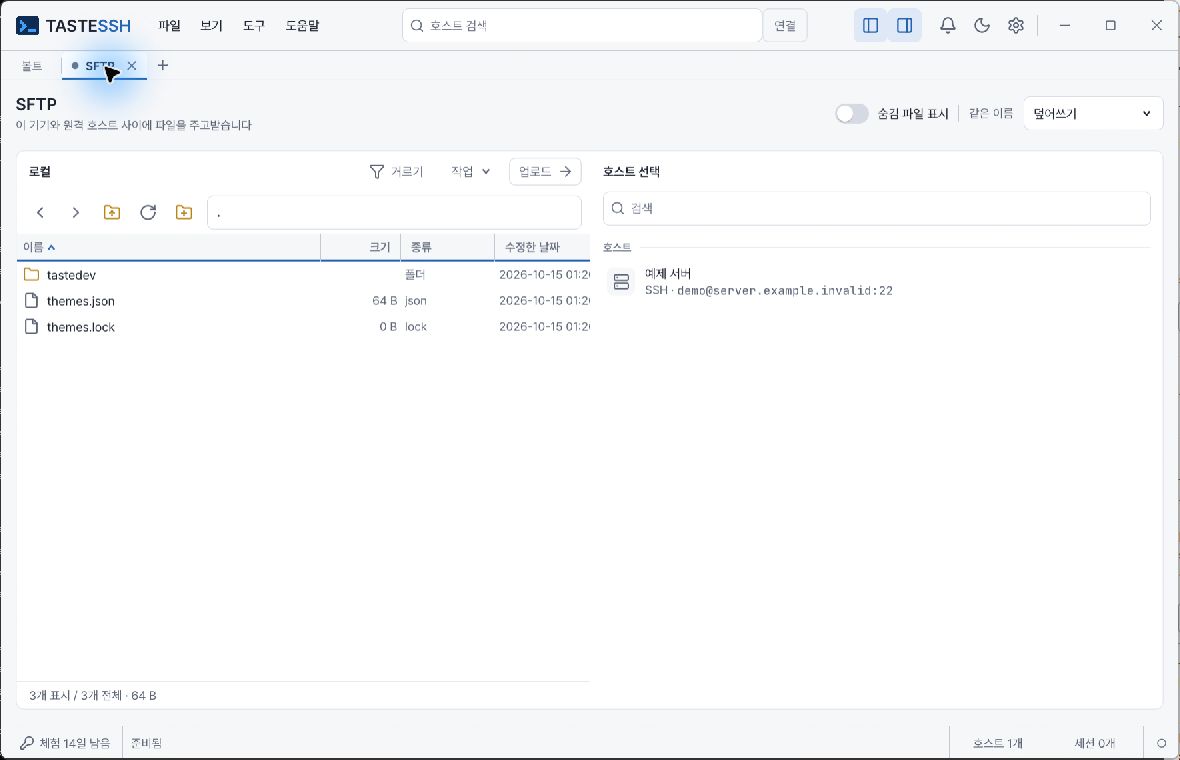
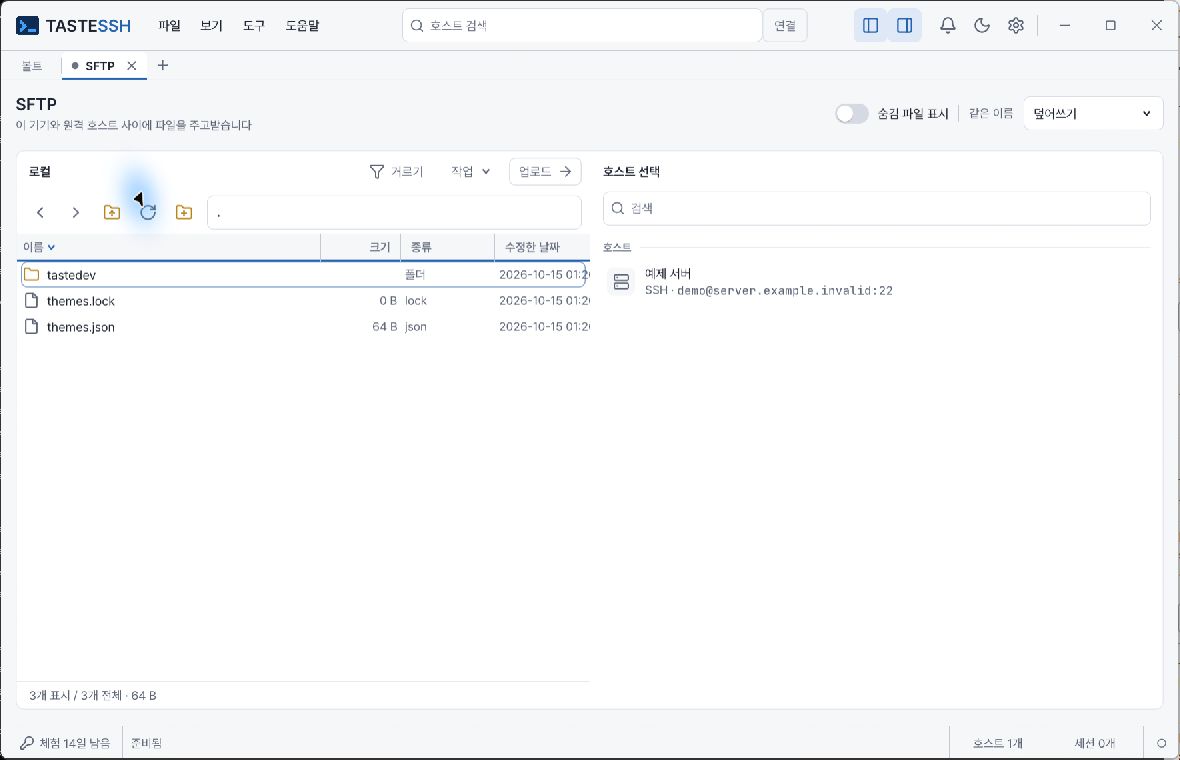
Local SFTP listing and remote host selection before connection
Documentation example servers are not actual connection targets. The local path . is an isolated example folder; this is not a completed remote transfer.
Example local listing sorted by descending name
Paths, selection and the transfer queue
Prepare an SSH-authenticatable host, permission to access remote directories and sufficient local/remote storage.
Show SFTP and select a host on the remote side. Before connecting, the remote area shows host search and group lists. Navigate locally/remotely with Back, Forward, Parent, Refresh, New folder and path input. Press Enter after entering a path.
Filtering searches names; Show hidden files controls hidden-item visibility.
Clicking a column header refreshes/sorts the list by that column; clicking again reverses direction. Ascending uses an up arrow and descending a down arrow. Column width/visibility can also be changed. In narrow windows, Local/Remote tabs show one side at a time.
Select multiple files for upload/download. Check direction and both current folders. Distinguish GUI buttons from CLI support for recursive whole-folder transfers.
Same-name policies are Overwrite, Keep both and Fail if exists. For important files, choose Keep both or Fail and make separate backups.
Inspect completed, failed, canceled and queued counts in the transfer list. Use retry for failed jobs or cancellation of active jobs when offered in the relevant row.
The Actions menu/context menu provides New folder, Rename, Copy path and Delete. F3/Space previews supported files.
Select a file or folder, activate its local/remote list and press F2 to open Rename. Check the new name and apply with Confirm. List F2 is not handled while editing an input or another dialog is open. The remote list must be connected. Canceling does not execute a rename.
Dropping OS files can upload them to the connected remote current folder. Check the remote destination before dropping.
Selecting the same path as the current folder does not unnecessarily reset the listing/selection. To reread its contents, use Refresh. F2 and same-path reselection were confirmed in release source, not within actual verification of the 0.2.18 screenshots above.
The expected result is completed status and files visible in the destination listing. Cancellation or network disconnection is not success. Do not assume temporary leftovers or overwritten files were automatically recovered. See CLI guidance for resume tokens, hash checks, remote copy, links and permissions.
SFTP file transfers
Open SFTP and connect to the remote host.
Check local and remote folder paths.
Select files and run Upload or Download. Files from the selected side go to the opposite side's current folder.
Inspect progress and distinguish completion, failure and cancellation. Refresh the destination folder after completion to verify files.
Use the relevant list or Actions menu for folder navigation, New folder, Rename, hidden files and previews. Unsupported file formats may not preview.
Precautions:
Check upload/download direction, destination path and existing files first.
Obtain separate backups before overwriting or deleting same-name files.
Local file deletion is immediate and bypasses the Recycle Bin. Do not assume remote deletion is recoverable either.
Canceling does not necessarily restore destination files to their previous state. If cleanup fails, inspect temporary and destination files.
After transfer failure, check permissions, free space and connection state before resending only necessary files.