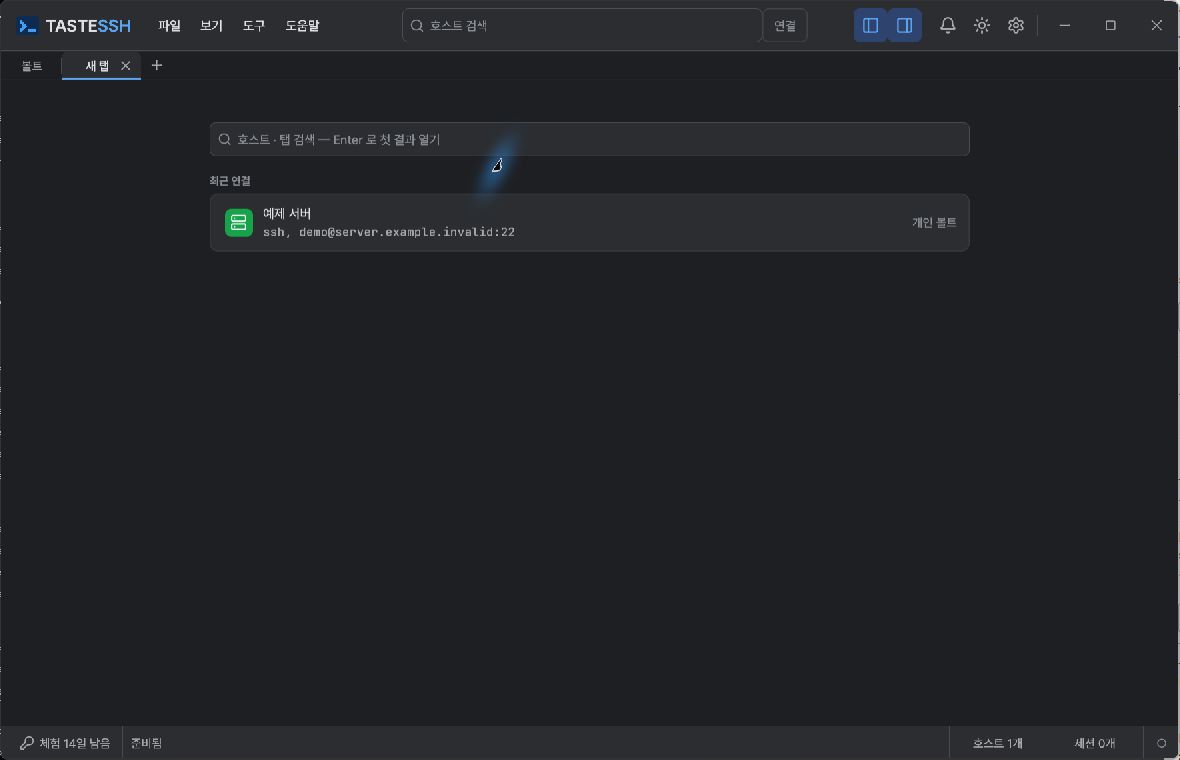
This screenshot shows choosing a host to connect to. It is not a connected remote terminal or command output.
After opening several sessions, use the tab-list button to select hidden tabs. A tab's context menu offers Duplicate, Reconnect, Detach to new window, Close and Close all other session tabs. Available commands depend on session type, count and detached state. Drag tabs to reorder them.
Duplicate creates another connection session; it does not duplicate an existing remote process. Reconnect likewise does not automatically restore previous remote work state. Before closing all other session tabs, check ongoing work in each session.
First confirm target sessions and execution permissions. The expected result is display in the chosen pane or delivery of a command to the exact intended target. If focus is unclear, disable simultaneous input and test a safe command in one session. Snippets, Information and Display in the session's right panel are separate from the global SFTP screen.
exit in the server shell or end the session/close the tab. Check the effect on running work first.Ctrl+C sends an interrupt signal to running work. Use Ctrl+Shift+C to copy. Ctrl+Shift+C copies only and does not interrupt. When drag-to-copy is disabled and text is selected, the first Ctrl+C copies and clears the selection; the next Ctrl+C interrupts. Review multiline pasted text before pasting because it may execute unintended commands. Lines where you typed a command end with a faint copy icon; click it to copy that command, or press Ctrl+Shift+L to copy the command on the line under the pointer (otherwise the last one). Password input that is not echoed gets no icon, and Settings › Terminal › Copy icon at the end of command lines turns it off.
When the terminal has input focus, Tab and Shift+Tab are sent to the shell. No app keyboard-focus border is drawn around the entire terminal then. Keyboard-focus indicators on buttons, lists and other non-terminal controls remain. During broadcast, however, completion is blocked at the shell; see Broadcast in the workspace chapter.
In Settings → Terminal, adjust font, size, cursor, terminal theme, scrollback and automatic reconnection. Keepalive uses security-policy-fixed values; read the displayed interval and no-response guidance. Scrollback changes apply to newly opened sessions. Automatic reconnection does not restore existing server processes or interrupted commands.
When disconnected, an error card overlays the affected terminal. Terminal height and previous output remain. Use the card to reconnect, open logs or expand detailed causes; long details scroll inside the card.
Terminal selection follows the selected source text, not screen coordinates. After scrolling, copying and searching selected content still use that same text. Drag beyond the top or bottom edge while holding the mouse to scroll output history automatically. Selection clears if its source text is removed by retention limits or rewritten. Window-width changes and alternate-screen transitions also clear it to avoid copying incorrect content.
Windows text copying uses the corresponding app window as clipboard owner. If writing to the operating system fails after a copy request, an error is logged. If the window has closed or its ownership cannot be established, copying stops without clearing the clipboard.
Dragging a host connection tab shows a translucent tab preview following the pointer. It preserves the original tab height, name, protocol and status. Releasing removes the preview and applies tab reordering. Dragging alone does not reset connections or output.
For several terminals in one view or grouped tabs, see Workspaces and tab groups.
Ctrl-click underlined output such as npm notices to insert it at the current input position in that terminal. For example, insert the entire underlined npm install -g npm@12.2.1 without copy/paste. Enter is not sent: review it and execute explicitly.
Hovering over a link while holding Ctrl shows a tooltip with the URL and two actions. Ctrl-click opens the browser as before; Ctrl+Shift-click inserts the URL into the current terminal. The latter does not use the clipboard, Enter or broadcast. Ctrl+Shift-click also supports direct entry of underlined text.
Reconnect guidance appears in a small overlay at the bottom center of the affected terminal. Status and host are on the left and Reconnect on the right; in narrow panes, the action row moves below. If logs exist, the record icon's tooltip offers Open logs.
A short failure reason is shown; expand its original text with Details. Automatic-reconnect countdown/stop and new-host-key verification retain their existing behavior. The overlay does not alter terminal size or scrollback, and no reconnection happens before you click.
Enable Settings → Terminal → Show previous output when reconnecting to restore earlier output before reconnecting. It is off by default. Output still present in the current tab is preferred; if empty, the host's most recent saved log is used. If neither exists, connection starts with a blank screen.
A Reconnect divider separates previous output from the new connection's output. Only display is restored: commands, authentication and terminal control responses are not resent to the server, and old content is not duplicated in the new log. Previous output is limited by current scrollback retention; historical control effects such as colors and cursor movement are not restored. Manual and automatic reconnects use the same setting. Enabling it does not connect automatically at app startup.
Commands using the last line for progress, such as APT, preserve ordinary output displaced above it within the configured scrollback limit. Temporary output from TUIs using only part of the screen or the alternate screen is not mixed into ordinary history. This fix is not limited to a particular server version. It does not automatically recover history already lost.
If a session disconnects without an exit code, the actual SSH transport termination error is displayed and recorded where available. Keepalive timeouts and connection resets should not be obscured by generic shell-exit wording. If the transport error cannot be recovered or only the shell channel ended, the missing-exit-status notice remains. Normal exit codes are unchanged; recording a cause does not mean a server or network outage has been resolved.
Select text in a terminal, right-click and choose Save as snippet to open a new snippet window filled with the selection. The name is filled from the first line, and nothing is saved until you click Save. The top Edit menu also offers copy, paste, select all, search and Save as snippet for the terminal you are viewing (the focused pane in a workspace).
When something happens on a host or terminal, run a notification, sound, terminal input or script automatically. Open Tools → Event triggers…, or right-click a terminal tab and choose Add event trigger… to create a rule for that host. Rules are stored on this device only and are not included in settings export or cloud sync.
| Condition | Fires when |
|---|---|
| Connected · Disconnected · Connection failed | The terminal's state changes to it |
| Text appears in output | An output line matches the text (regular expressions allowed). Colors and other control codes are ignored. |
| No output for a while | A connected terminal stays silent for the set time. Fires once until output resumes. |
| CPU · Memory usage above | A collected value crosses the threshold. Fires again after it drops and rises; never fires without collected data. |
Targets are all terminals, local terminals, one host, or a group (including hosts in its subgroups). During the cooldown a rule does not fire again on the same terminal. Rules keep working while the app is locked.
Combine showing a notification, playing a sound, sending text to the terminal (optionally followed by Enter) and running a script. Recent runs at the bottom of the window keeps the last 50 entries.
Choose a Python or Node.js script file, review it, then press Approve this content. Only the approved content (SHA-256) runs; if the file changes it will not run until approved again.
python (also py on Windows) or node, without a shell. Change the interpreter paths under Interpreters at the bottom of the window.trigger, event, detail, terminal, endpoint, host_id, at). Passwords and keys are never passed, and only a minimal set of environment variables is inherited.import json, sys
event = json.load(sys.stdin)
print(f"{event['terminal']}: {event['event']} {event['detail']}")