안녕하세요, TASTEDEV입니다.
브라우저에서 원격 컴퓨터의 화면을 보고 조작할 수 있는 TASTEREMOTE를 소개합니다. 접속받을 PC에 호스트 앱을 설치하고, 접속하는 쪽에서는 별도의 뷰어 앱 없이 웹 브라우저를 이용합니다. TASTEDEV 운영 서버를 이용하거나 직접 서버를 운영하는 구성을 선택할 수 있습니다.
현재 TASTEREMOTE는 기능과 안정성을 계속 다듬고 있는 개발 중인 프로젝트입니다. 사용 환경에 따라 버그가 발생하거나 일부 기능이 미흡하게 느껴질 수 있습니다. 운영체제별 지원 조건과 알려진 제한 사항을 확인한 뒤 사용해 주세요.
사용 중 불편한 점이나 오류를 발견하셨다면 제품 페이지의 의견과 질문에 남겨 주세요. 사용한 운영체제와 TASTEREMOTE 버전, 문제가 발생한 상황을 함께 알려 주시면 원인을 확인하고 개선하는 데 도움이 됩니다.
제품 및 다운로드: https://tastedev.net/products/remote
사용 설명서: https://tastedev.net/docs/remote
처음 연결하는 방법과 개발 과정은 아래 ‘자세히 보기’의 개발 로그에서 확인하실 수 있습니다.
아직 부족한 부분이 있지만, 보내 주시는 의견을 바탕으로 하나씩 개선해 나가겠습니다. TASTEREMOTE에 관심을 갖고 사용해 주시는 모든 분께 진심으로 감사드립니다.
TASTEDEV 드림
Once you create an account and register a computer, you can connect to it at any time with the device password you set, even when no one is in front of it (unattended access).
Create an account and log in
Log in or sign up from Log in in the top menu of the web page. If the server allows it, you can also log in with a Kakao, Naver, Google, Apple or GitHub account. Passwords are at least 8 characters.
If the server uses email verification, you must press the Verify email button in the mail you receive after signing up before you can log in. The verification link works for 24 hours. If the mail does not arrive, press Resend verification mail. If you forgot your password, press Forgot your password? on the login page (the link works for 1 hour).
Some servers block sign-up so that only the administrator creates accounts. In that case, ask your server administrator for an account.
On the Account page, you can use Change password and Log out everywhere.
Register a computer
There are two ways.
On the web, with a pairing code
Install the host program on the computer to register.
Press Add device in My devices on the web.
Run the command shown in the window on the computer to register, and enter a device password (at least 8 characters) twice. On Windows run it in PowerShell; on Linux and macOS run it in a terminal. For example, on Linux:
The pairing code expires after a few minutes. If it expires, press Get a new code.
In the host app
In the host window, go to Settings › Security, enter the Pairing code, This PC's name and Device password, then press Register. Get the pairing code from Add device on the web.
Once registered, the host window shows Unattended access instead of the one-time password.
My devices
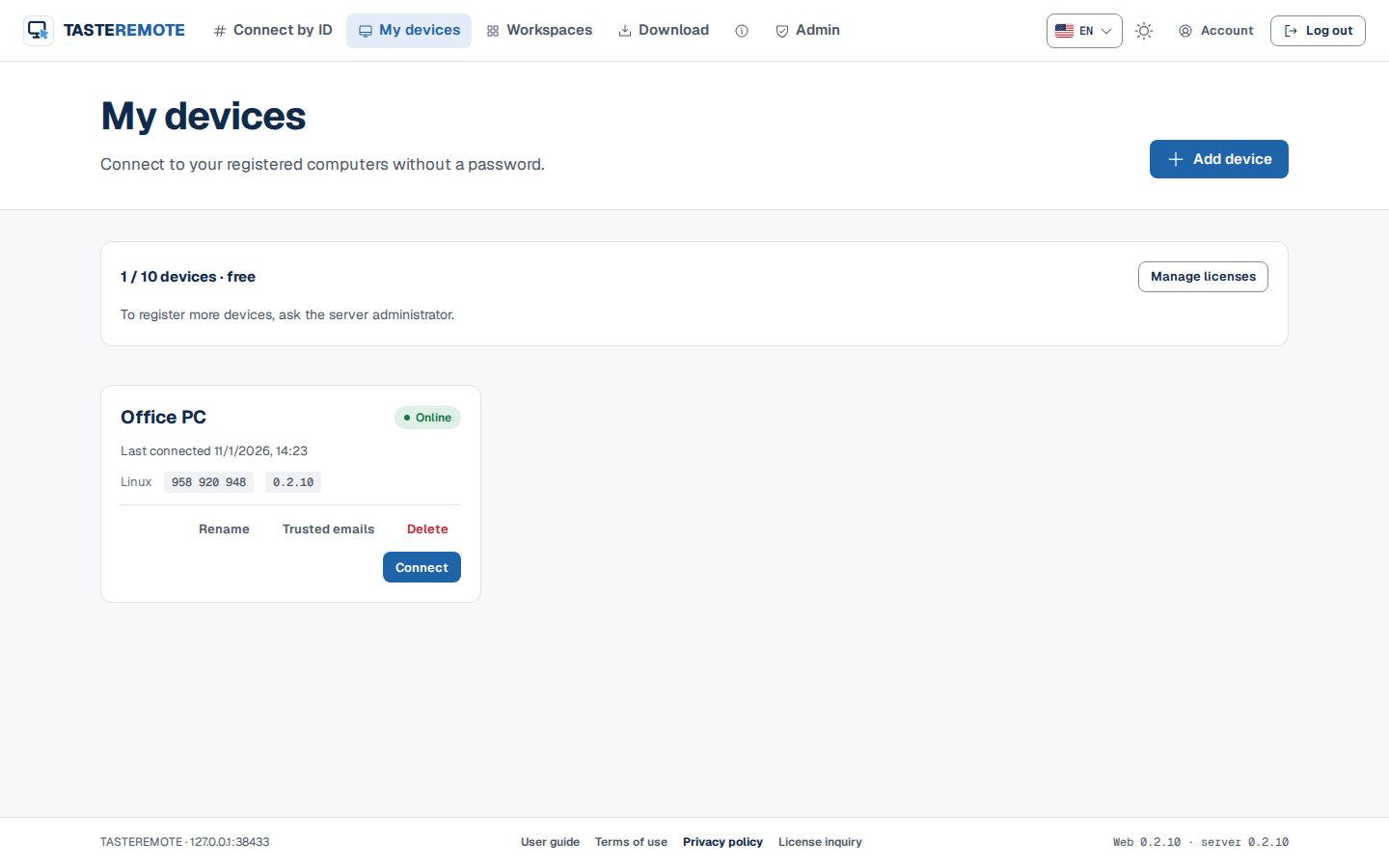
My devices shows your registered computers as cards. Each card shows whether it is online, the host ID, the host version and when it was last seen.
Removes the registration. To use it again, you must pair it again.
If you turn on Save the password in this browser in the Connect window, next time you only need to press Connect. The password is stored encrypted in this browser only and is never sent to the server. Do not turn it on for a computer that several people use. You can remove saved passwords under Saved device passwords on the Account page.
If you turn on View only (send no input) before connecting, you only view the screen.
Turn on starts a computer that is off (Wake-on-LAN). It appears when another computer of the same account is running on the same network, and that computer sends the signal. The computer to start needs Wake-on-LAN enabled in its BIOS or network card settings, and a wired connection is the most reliable. If no computer is running on that network, the card says Can't turn on.
When a new version is out, the card shows an update line. Press Update and that host downloads the server's version, installs it and comes back online. If someone is connected, you choose whether to wait for the sessions to end or disconnect them now. Hosts installed from a package and Macs must be installed on that computer itself. A host whose first two version numbers differ from the server's (such as 0.2 and 0.3) cannot be connected to until it is updated.
Allow updates from the server: When on, this device's owner and the server administrator can update this computer from the signaling server. Only the server's version with a verified signature is installed.
Unattended access lock
If the device password is entered wrong 5 times in a row, that computer stops taking unattended access for a while. The lock starts at 5 minutes and grows with each further wrong attempt (up to 1 hour). The host window shows "Unattended access is locked after repeated failed authentication" and the time left.
Number of devices
How many devices you can register depends on the server's license. If "You have registered as many devices as allowed" appears, delete devices you do not use or contact your server administrator.
Workspaces
In Spaces, you watch the screens of several devices together on one screen.
Press New workspace.
In Edit, choose a grid shape (for example, Grid 2×2, or one large slot plus five small ones) or Free layout, and drag devices into the slots. Finish with Done.
Press a slot to view it large, and press Control to operate that device.
Slots in a workspace are view only and shown at low quality. Only devices with a saved password show right away; the others need Enter password. Deleting a workspace leaves the devices and saved passwords as they are.