Once connected, the other computer's screen shows in your web browser. Use the Session tools bar at the top center of the screen for features such as clipboard, files, sound and quality.
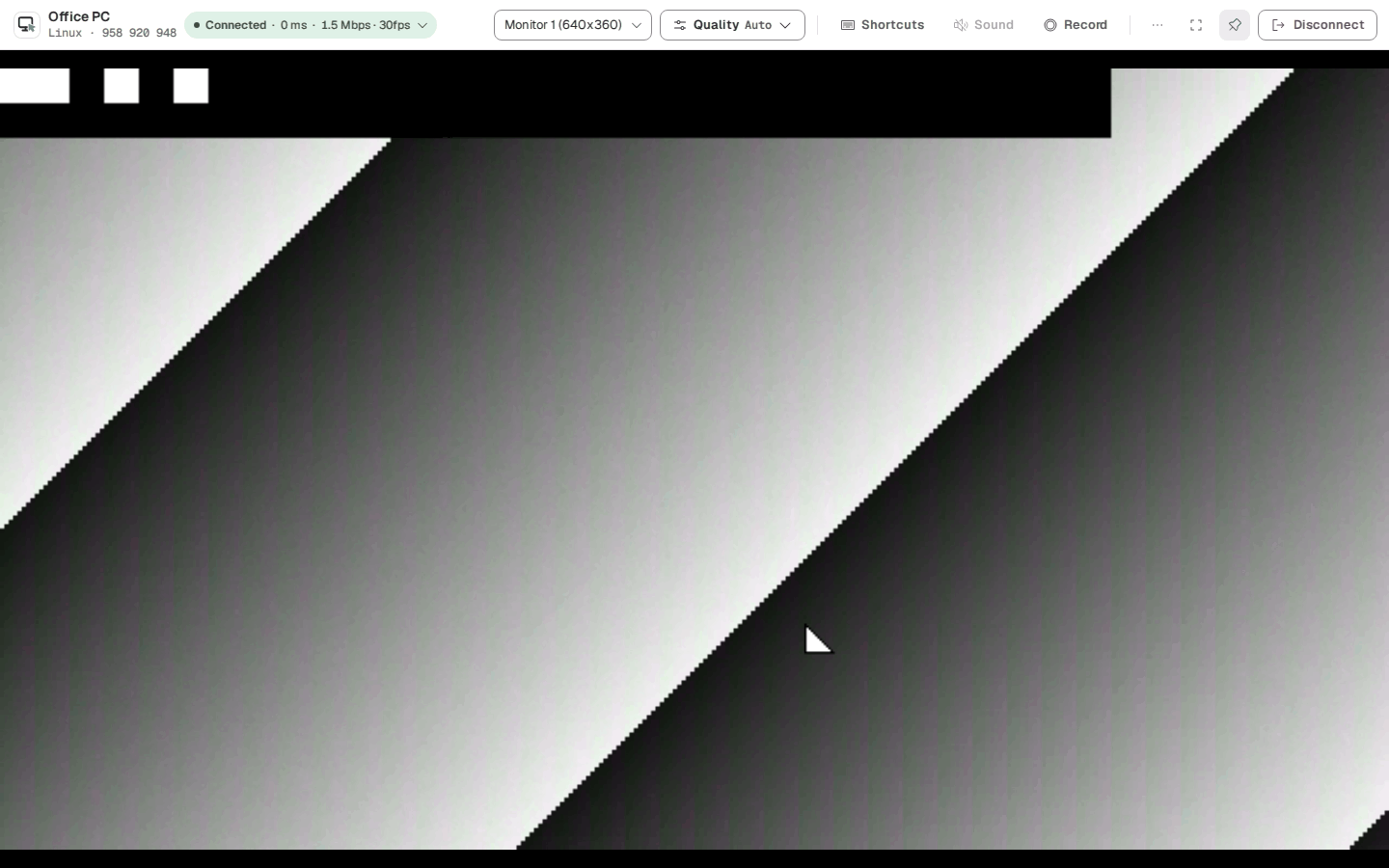
The toolbar may be folded away to give the remote screen more room. Press ⌄ at the top center to show it, and press the pin to keep it showing (Always show the toolbar / Fold the toolbar).
| Tool | What it does |
|---|---|
| Connection info | Shows first frame, bitrate, loss, resolution and latency. |
| Monitor | Chooses which monitor to view when the other computer has several. You can also choose Follow the controller's screen. |
| Quality | Chooses Auto, High quality or Low bandwidth. Auto adjusts sharpness and frame rate together to suit the network. |
| Shortcuts | Sends keys that the browser or this computer would otherwise catch. |
| Sound | Turns the other computer's sound on and off. |
| Clipboard | Shares copied text. |
| Files | Sends and receives files. |
| Record | Records the session in this browser. |
| More | Picture fit, theme and release control. |
| Full screen | Shows the remote screen filling your screen. Press Esc to leave. |
| Disconnect | Ends the session. |
What you set in the Quality menu:
When the network is slow, a notice such as "Quality lowered for a slow network" appears.
Choose it in More › Picture fit.
While you are on the remote screen, most keys go straight to the other computer. To take the keyboard back from the remote screen, press Left Ctrl, Alt and Shift together.
Send keys that the browser or this computer would catch from the Shortcuts menu.
| Shortcut | What it does |
|---|---|
| Ctrl + Alt + Del | Lock · security screen |
| Alt + Tab | Switch windows |
| Win | Start menu · Activities |
| Ctrl + Shift + Esc | Task manager |
| Print Screen | Screenshot |
| Han/Yeong | Korean/English switch |
A game pad connected to the viewer appears as an Xbox pad on the remote computer. It works only while you have control. A browser recognizes a pad once you press one of its buttons with the page in front. For now only Linux hosts take pads, and the user on that computer must be able to write /dev/uinput. The Linux PC app cannot use pads yet, so use a browser there.
Turn on Share automatically in the Clipboard menu, and text copied on one side arrives on the other right away. You can also turn automatic sharing off and send it when you want with Send my clipboard now.
Only text is shared. A clipboard larger than 255 KB is not sent; send files with file sending instead. If the other person turned off the clipboard for this session, you cannot use it.
Press Send file under Send in the Files menu, or drag a file onto the remote screen, to send it to the other computer. It is saved in the other computer's Downloads/tastedev-remote folder, and a file with the same name is not overwritten. You send one file at a time, and folders cannot be sent.
Under Receive, you pick files on the other computer and bring them over. This works only when you connect to one of your devices; when you connect by ID, you receive only files the other person sends you. Each file can be up to 512 MB.
Press Sound to turn the other computer's sound on and off. If the other computer has no sound, "No host sound" shows.
Press Record to record the session in this browser, and press Stop recording to download it as a file. Recording saves and stops when it reaches 1 GB. If the other computer does not allow recording, "The host does not allow recording" appears.
If the other computer is recording this session itself, the toolbar shows Remote PC is recording.
Turn on [Privacy] in a controlling session and the person at the remote PC cannot see the screen, and that PC's speakers are off. The screen stays visible in this window. It ends by itself when you disconnect or hand over control.
Windows covers the screen with a black window; Linux (X11) turns the monitors off. On Linux the monitors may light up briefly when remote input arrives. Wayland and macOS hosts do not have this button. Run the host with --no-privacy to disallow it.
The person at the remote PC can end it at any time. Pressing Ctrl+Alt+Shift+P brings the screen and sound back, and the viewer gets a notice that it was ended on the remote PC. Windows shows these keys on the cover; on Linux the monitors are off, so no hint is visible. When the screen can be seen, [Unblock] on the session row of the host window does the same. On Windows, if input is also blocked, unblocking it with Ctrl+Alt+Del ends the privacy screen too. If another program already uses this key combination, the privacy screen cannot be turned on.
In a controlling session, [Power] offers lock screen, restart, log off and shut down. Lock happens at once; the others ask first. Run the host with --no-power to disallow it.
When you restart one of your devices, this window waits up to 10 minutes for that PC to come back. A saved password then connects at once; otherwise the password dialog opens. If you connected by ID, connect again with the new password shown on that PC.
Under [Shortcuts] › [Manage macros…] you can name and keep key combinations you use often: up to 20, with up to 6 keys each, in this browser only. Keys this computer takes first cannot be caught.
When several people connect to the same computer, only one person controls it and the others only view.
On a phone, the tools gather at the bottom.
If the connection drops for a moment, "The connection dropped for a moment — reconnecting" shows and it reconnects by itself. If the other computer's screen locks, "The remote computer's screen is locked" shows. It shows again once it is unlocked on that computer, and the connection stays.
When the session ends, the Disconnected card shows why it ended and how long the session lasted, and you can connect again with Connect again.