안녕하세요, TASTEDEV입니다.
브라우저에서 원격 컴퓨터의 화면을 보고 조작할 수 있는 TASTEREMOTE를 소개합니다. 접속받을 PC에 호스트 앱을 설치하고, 접속하는 쪽에서는 별도의 뷰어 앱 없이 웹 브라우저를 이용합니다. TASTEDEV 운영 서버를 이용하거나 직접 서버를 운영하는 구성을 선택할 수 있습니다.
현재 TASTEREMOTE는 기능과 안정성을 계속 다듬고 있는 개발 중인 프로젝트입니다. 사용 환경에 따라 버그가 발생하거나 일부 기능이 미흡하게 느껴질 수 있습니다. 운영체제별 지원 조건과 알려진 제한 사항을 확인한 뒤 사용해 주세요.
사용 중 불편한 점이나 오류를 발견하셨다면 제품 페이지의 의견과 질문에 남겨 주세요. 사용한 운영체제와 TASTEREMOTE 버전, 문제가 발생한 상황을 함께 알려 주시면 원인을 확인하고 개선하는 데 도움이 됩니다.
제품 및 다운로드: https://tastedev.net/products/remote
사용 설명서: https://tastedev.net/docs/remote
처음 연결하는 방법과 개발 과정은 아래 ‘자세히 보기’의 개발 로그에서 확인하실 수 있습니다.
아직 부족한 부분이 있지만, 보내 주시는 의견을 바탕으로 하나씩 개선해 나가겠습니다. TASTEREMOTE에 관심을 갖고 사용해 주시는 모든 분께 진심으로 감사드립니다.
TASTEDEV 드림
With just the ID and password shown in the other computer's host window, you can connect right away without an account. The screen shows only after the other person allows it in the host window.
How to connect
Get the My ID and Password from the other person's host window. They can copy them with Copy ID and Copy password and send them to you.
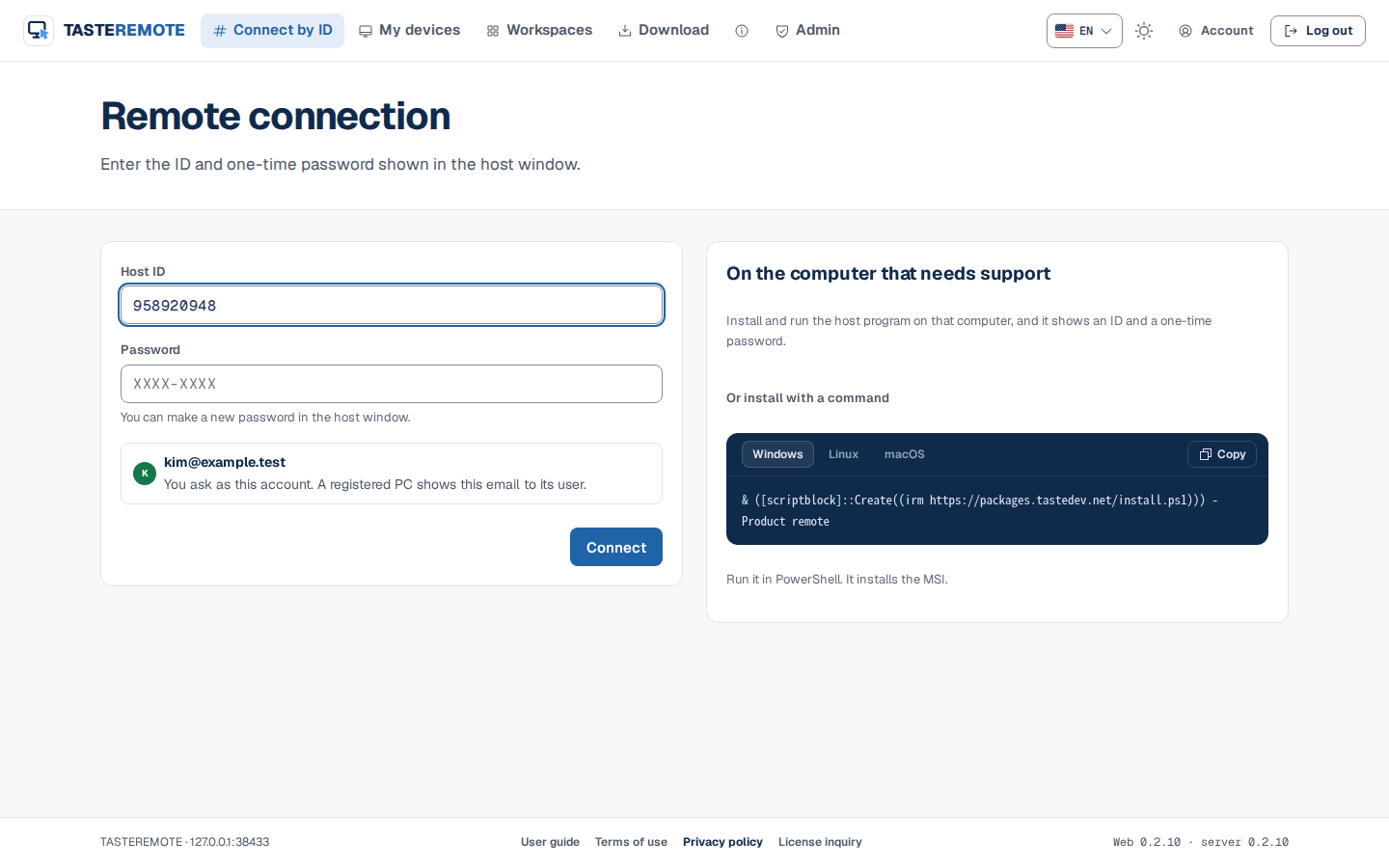
Open Connect in the top menu of the web page.
Enter the Host ID (9 digits) and Password, then press Connect. Spaces and - in the password are ignored, and lowercase letters are fine.
The connection goes through Connect to the server › Check the device › Check the password › Wait for the host to accept › Connect the screen.
A Connection request window opens on the other computer, and the screen shows once the other person presses Allow.
If the password is entered wrong 5 times, the other computer makes a new password. Ask for the new password in that case.
The connection request window on the other computer
The receiving side sees a Connection request window. It shows "○○ wants to connect to this computer." and the session number. If the viewer did not enter a name, it shows "Unnamed viewer".
Allow: Shows the screen and also allows keyboard and mouse control.
View only: Shows the screen only. If someone else is already in control, this is the only choice.
Reject: Does not take the connection. Pressing Esc also rejects.
The checkboxes in the window set which features this session can use. All are on at first.
Share the clipboard
Transfer files
Send the sound
If there is no answer for 30 seconds, the window rejects by itself. To prevent allowing by mistake, the Allow button does not respond for 1 second after the window opens, and Allow can be pressed only with the mouse (Enter or the space bar does not allow).
Connect by ID to a PC registered to an account
If the other computer is a PC registered to the other person's account, you can connect to it by ID only as a logged-in account. In that case, enter the device password the other person set for that PC in the password field.
Log in on the web first. Once logged in, the Connect by ID page shows your email and "You ask as this account".
Enter the ID and the device password, then press Connect.
The connection request window on the other computer shows your email as verified by the server. You are connected once the other person allows it.
Connect by ID
Messages you may see when the connection does not go through:
Message
Meaning
This PC takes ID connects from logged-in accounts
Log in and connect again.
This PC accepts trusted emails only
Ask the PC's owner to add your email to the trusted list.
This PC does not take this connection
This PC is set not to take connections.
Only accounts with a verified email can connect
Verify your email with the verification mail in your inbox.
This PC's host is too old to take ID connects
The other person needs to update the host program.