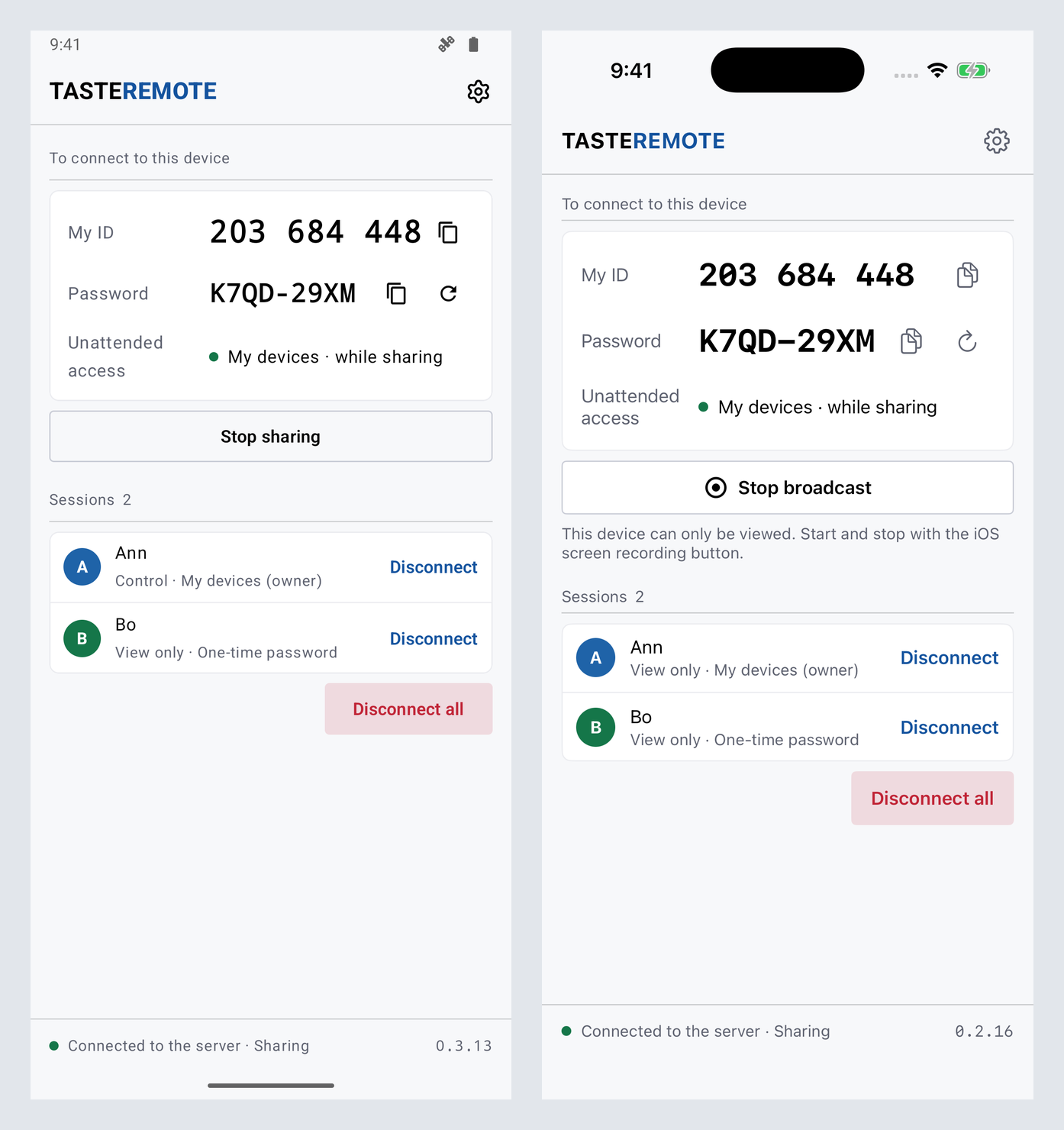
Install the TASTEREMOTE Host app on a phone, and other devices can see this phone's screen. The connecting side uses a web browser or the TASTEREMOTE Viewer app. The home, the accept window and the settings have the same order and names as the PC host window (Host app settings).
| Feature | Android | iPhone |
|---|---|---|
| Seeing the screen | Yes | Yes |
| Remote control | Yes, with the accessibility permission on | No (view only) |
| Sending sound | Yes (only what apps play) | No |
| Clipboard · files | Only when control is allowed | No |
| Starting and stopping | Start sharing · Stop sharing | iOS screen recording (broadcast) |
A phone takes connections only while you share. While sharing is off nobody can come in, not even the account's owner. Input blocking, the privacy screen, recording on the host, in-app updates and starting at login are not on phones.
From the top:
The gear at the top right opens the settings.
The first time, enter the server address and log in. To share with a one-time password only, without adding the phone to My devices, press Share without logging in.
While sharing, the notification "Sharing this phone" shows; end it with the notification's Stop or Stop sharing on the home. Many phones end sharing when the screen locks. Turn on Keep the screen on while sharing under Settings › Display to keep the screen on while you share. Turning the screen off with the power button still ends sharing.
For the other person to control this phone, turn on TASTEREMOTE in Android's accessibility settings. Without it they can only watch.
This permission is used only while you share and a viewer you accepted is in control. Nothing on the screen is collected or sent through it. Text you copy while sharing goes to the viewer's clipboard.
Tip · To send sound, press Allow at Sound under Settings › Permissions. Only what apps play is sent; the microphone is not listened to.
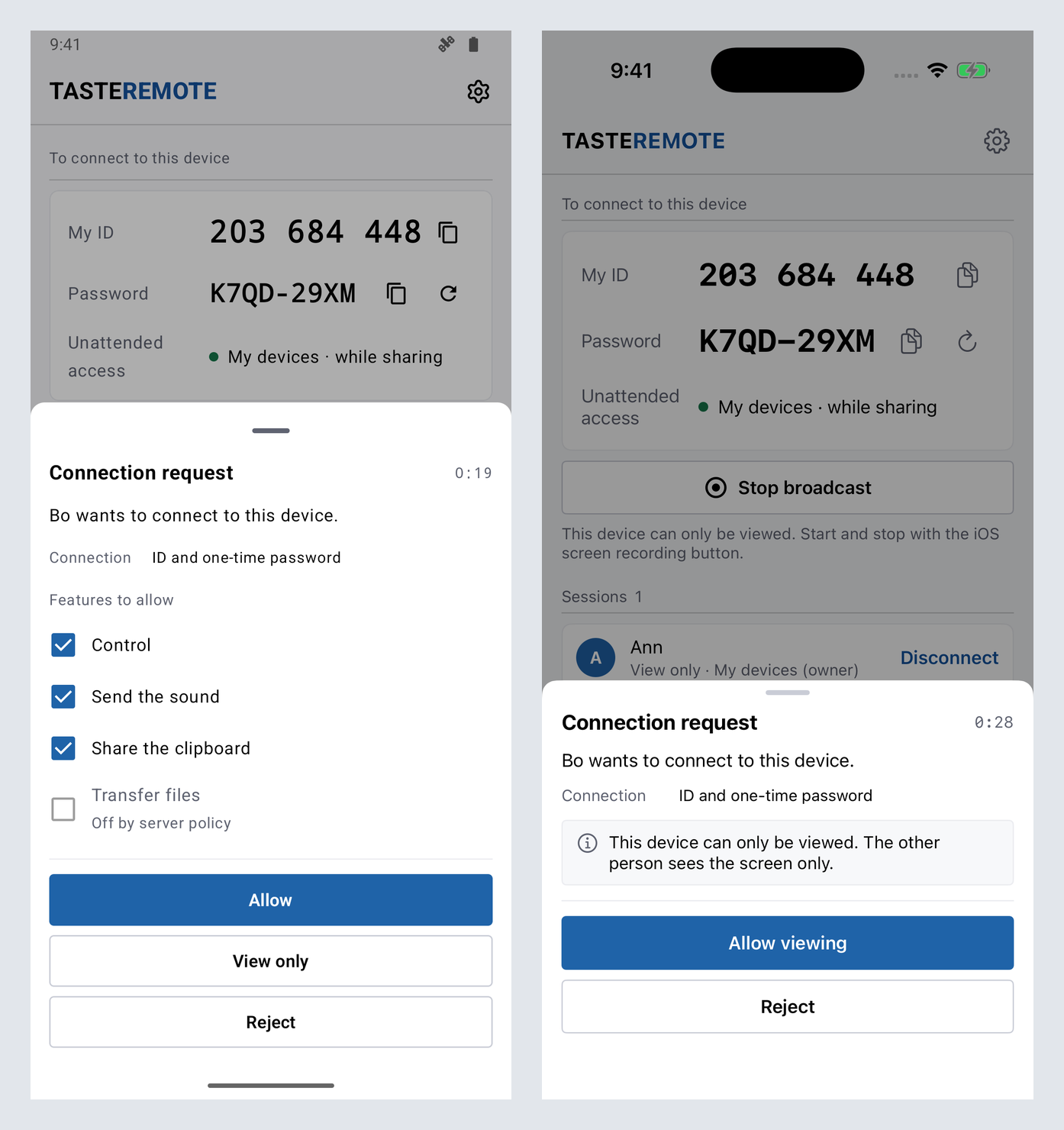
An iPhone is view only. The other person sees the screen only; iOS lets no app control the phone.
To end it, press Stop broadcast or iOS's screen recording button. Answering requests, disconnecting and New password work only while the broadcast runs.
Once added, the phone shows in My devices on the web, and the account's owner connects from My devices without the ID and one-time password. Even then the phone is online only while you share.
Once added, the Unattended access row shows "My devices · while sharing". When the account already has as many devices as it may have, or the server is too old, the window says so.
When someone connects with the ID and one-time password, the Connection request window comes up from the bottom of the screen.
So that nothing is pressed by mistake, the accept buttons work from one second after the window shows. Closing the window rejects. Several requests show one at a time, in the order they came.
Connection requests also come as notifications. A notification has no place to choose features, so its View only accepts view only.
When the server's administrator has turned unattended access off, the owner's connections also bring up the accept window, with "By management policy, the owner's connections are confirmed too".
While a registered phone is shared, the owner of the account it was added to comes in from My devices without the accept window. The phone still shows the notification "… came in". Its View opens the app and Disconnect ends that connection at once.
Open them with the gear on the home. The pages have the PC host window's names and order; pages phones do not have (General, Recording, Update) are left out.
| Page | What it holds |
|---|---|
| Display | Theme (System · Light · Dark). Android also has Keep the screen on while sharing. The language follows the device's settings. |
| Security | Before the phone is added, only "Available once this device is registered to My devices." and Add. Once added: the status, This device's name, Change… for the Device password, the lockout rule (after 5 wrong passwords, unattended access pauses for a while) and Unregister. |
| Permissions | Android: Screen sharing, Remote control and Sound, with their state and where to turn them on. iPhone: Notifications |
| Connection history | Connections to this phone and declined requests, newest first: who, when, and rights · length · result. Export… sends it through the share sheet; Clear asks first. |
| About | Version, website (Open) and server |
| Account | The server, the address logged in with Log out, and Delete account; Log in when nobody is logged in |
While sharing, adding the phone, changing the device password and unregistering cannot be done, and "These cannot change while sharing. Stop sharing first." shows. Unregister removes the phone from your account, so it needs you logged in.